


For iPhone (iOS 17/18/26) and Android (Android 14/15)
General Notes
Before the installation begins, the following points should be fulfilled:
The device must be connected to the internet, either via Wi-Fi or mobile data.Without an active connection, the eSIM cannot be loaded.It is best to set up the eSIM in advance of your trip.The data package will only be activated once you are at your destination.
The smartphone must be eSIM-capable.At Apple, this applies from the iPhone XS onwards.Almost all newer devices (e.g., on Android) supportB.Samsung Galaxy S Series, Google Pixel) eSIM.
If another physical SIM or eSIM is already active, it will be important later for the roaming configuration.The new eSIM is usually used for mobile data, while the old SIM should not use data roaming.
Option 1: eSIM activation via link
(Only for iOS from iOS 17.4)
Activation via link
- Open the email or SMS on your iPhone that contains the activation link for the eSIM.
- Tap the activation link once.
- The iPhone now automatically opens a window for eSIM setup with the note that a new mobile plan can be added.
- Tap on “Continue” or “Activate” to start the process.
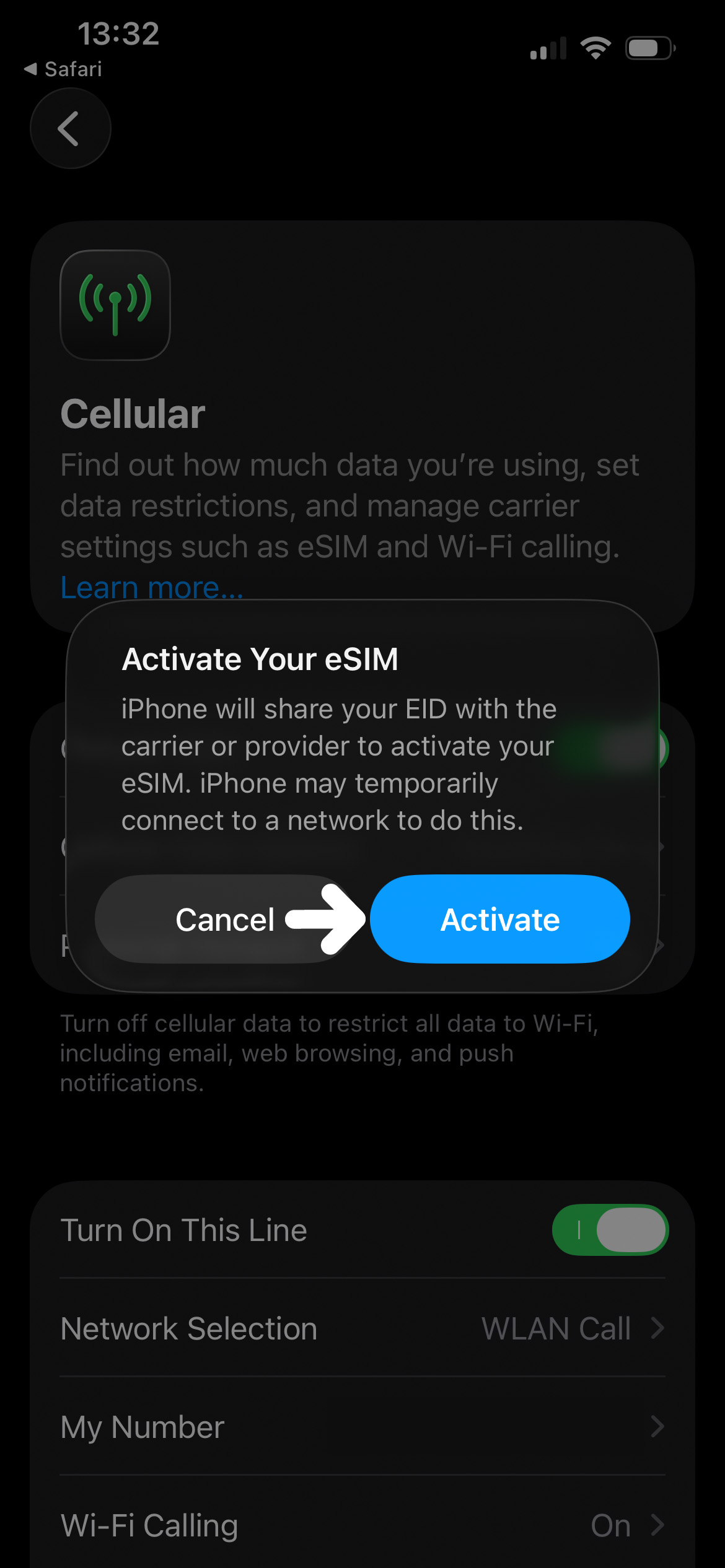
- The iPhone now shows you the details of the eSIM orthe mobile phone tariff to (z.B.Name of the provider or tariff).Check the details and tap “Continue” or “Add mobile tariff” again.
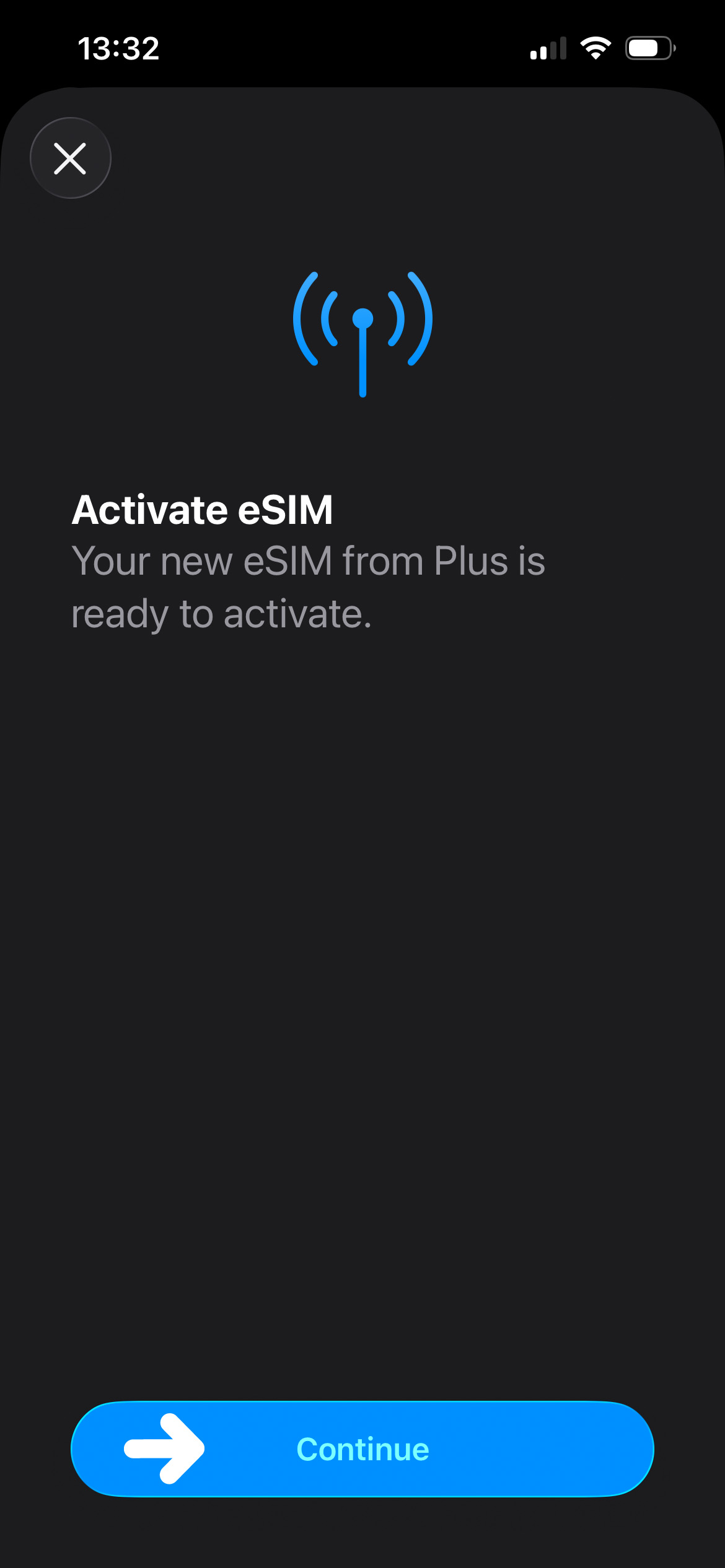
- Please wait while the eSIM profile is being downloaded.This process may take a few minutes and requires an active internet connection.
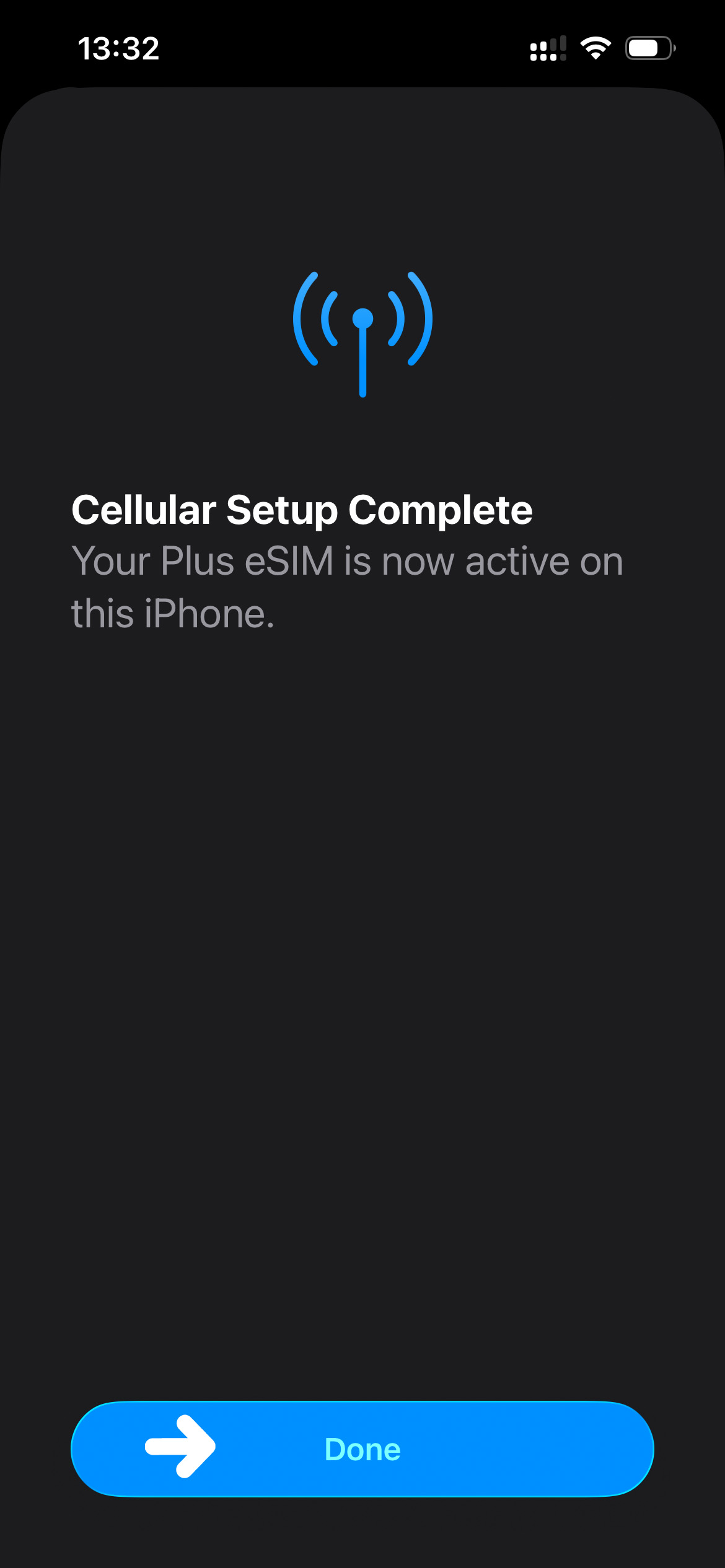
- Once the download is complete, you will see a confirmation that the mobile tariff has been added.Tap “Done” to complete the setup.
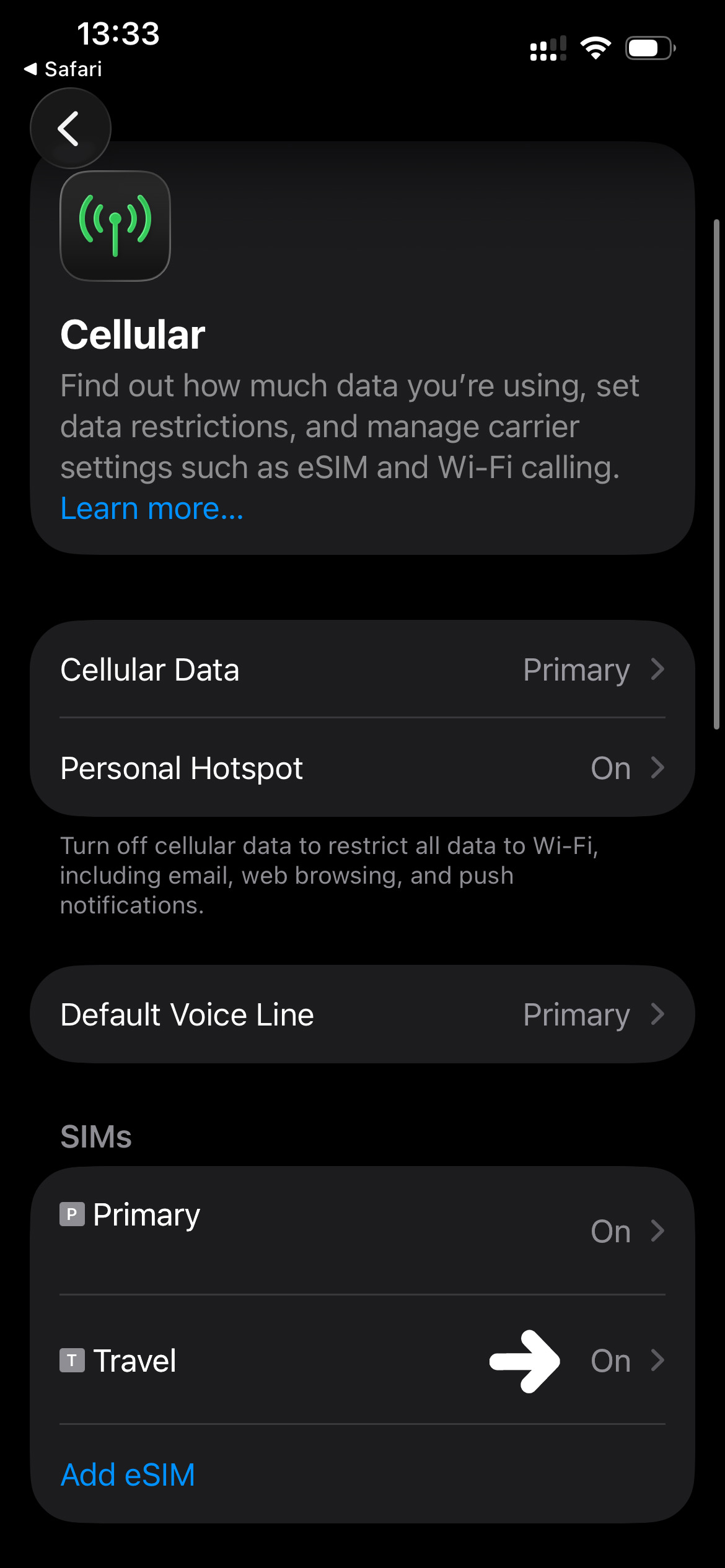
- Next, open the “Settings” → “Mobile Data” and check if the new eSIM is displayed under “eSIMs” and marked as active.
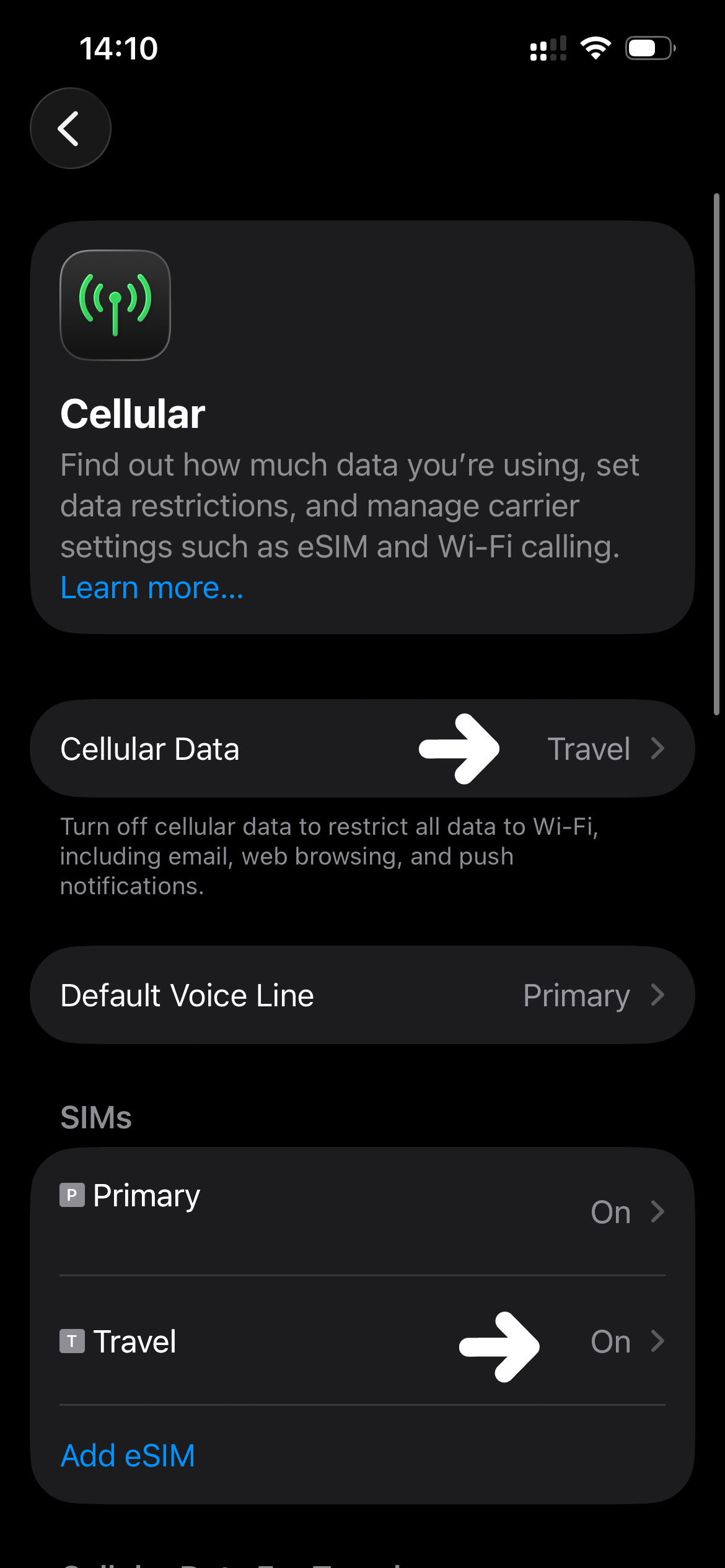
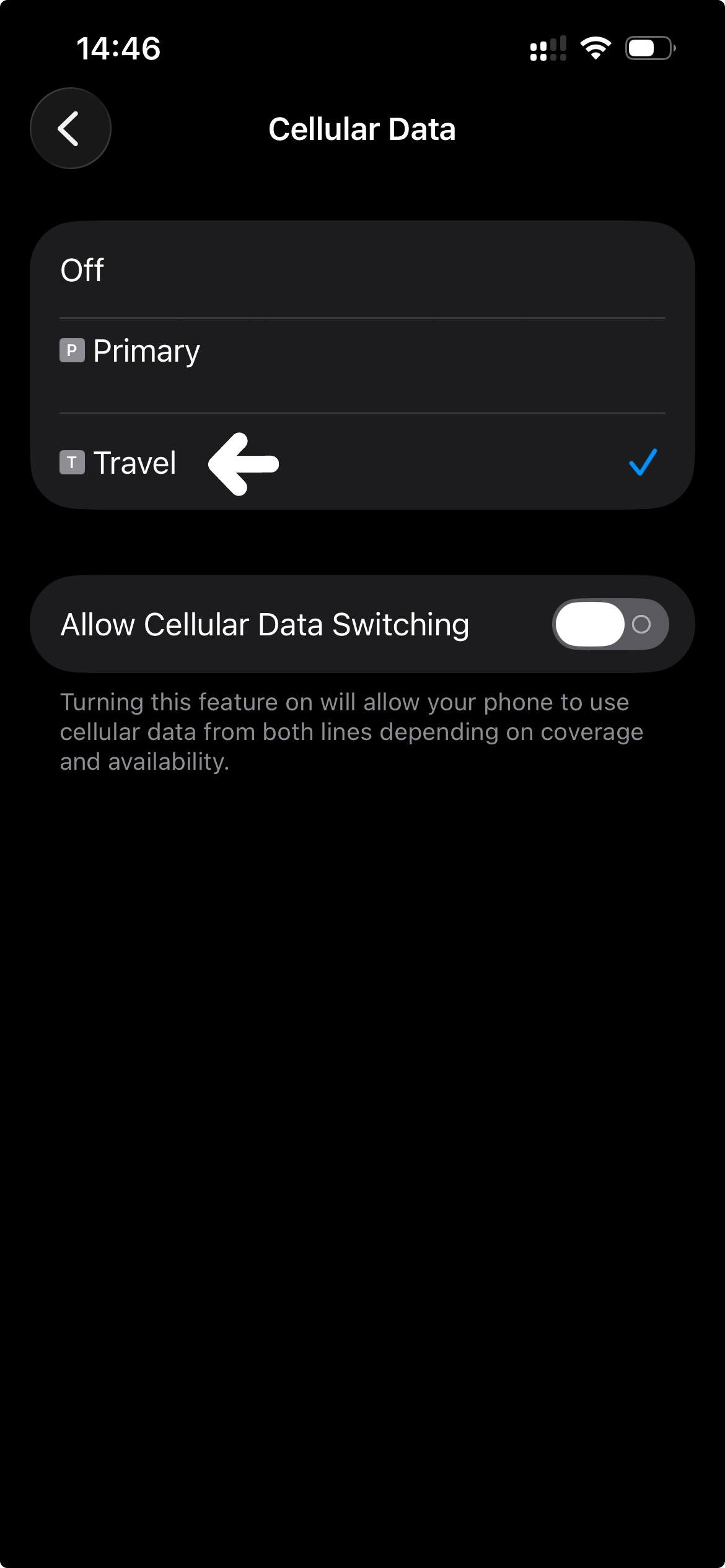
- If you wish to use the new eSIM for mobile data, tap on “Mobile” and select “Mobile Data”, then choose the new eSIM as your data line.
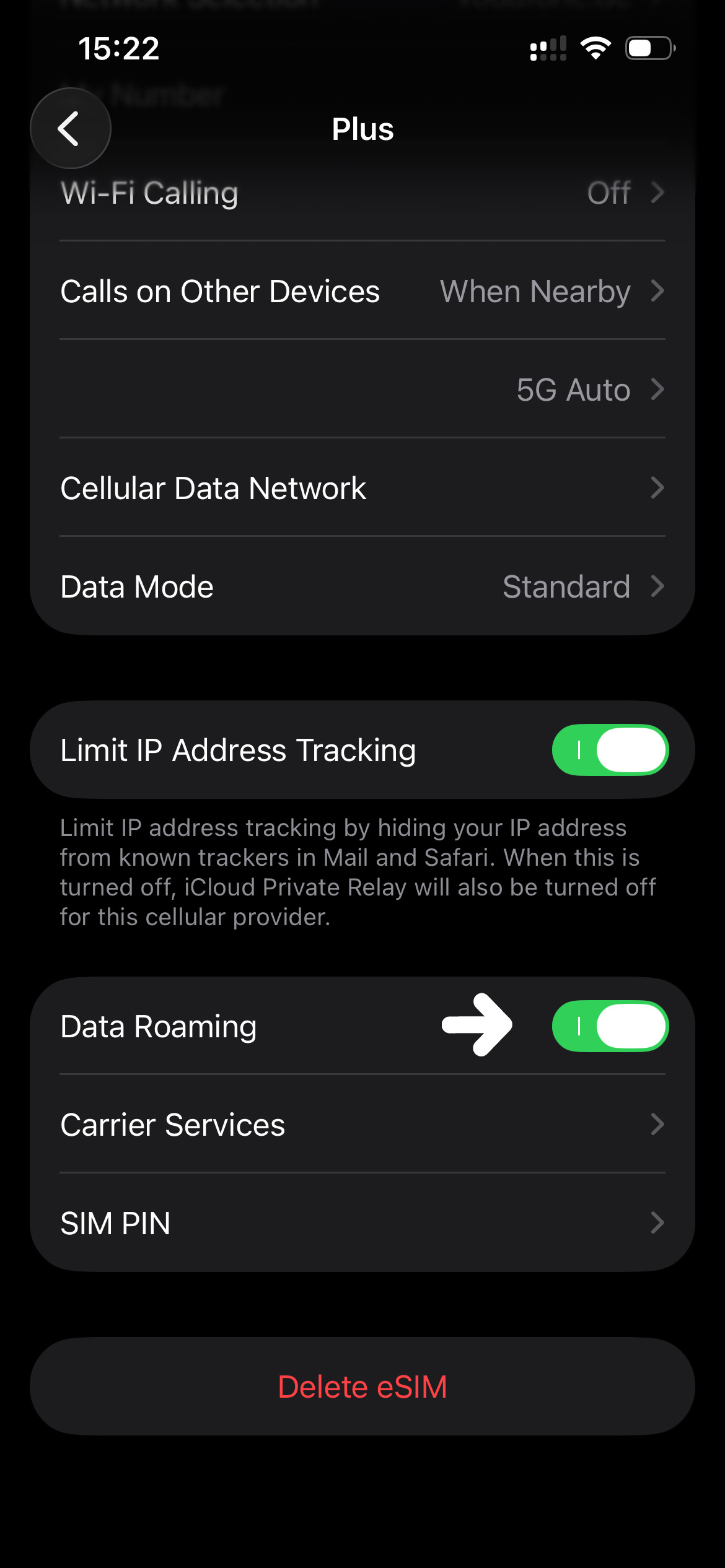
- Ensure that data roaming is enabled for the new eSIM as soon as you wish to use it. To do this, select the new SIM in the “Mobile network” settings and enable data roaming.
Option 2: eSIM installation via QR code
iOS
Preparation
Open the settings of your iPhone.Tap on “Mobile”.Here you can see existing tariffs.The new eSIM will later be displayed under “eSIMs”.
Installation via QR code
- Open “Settings” → “Mobile Data”.
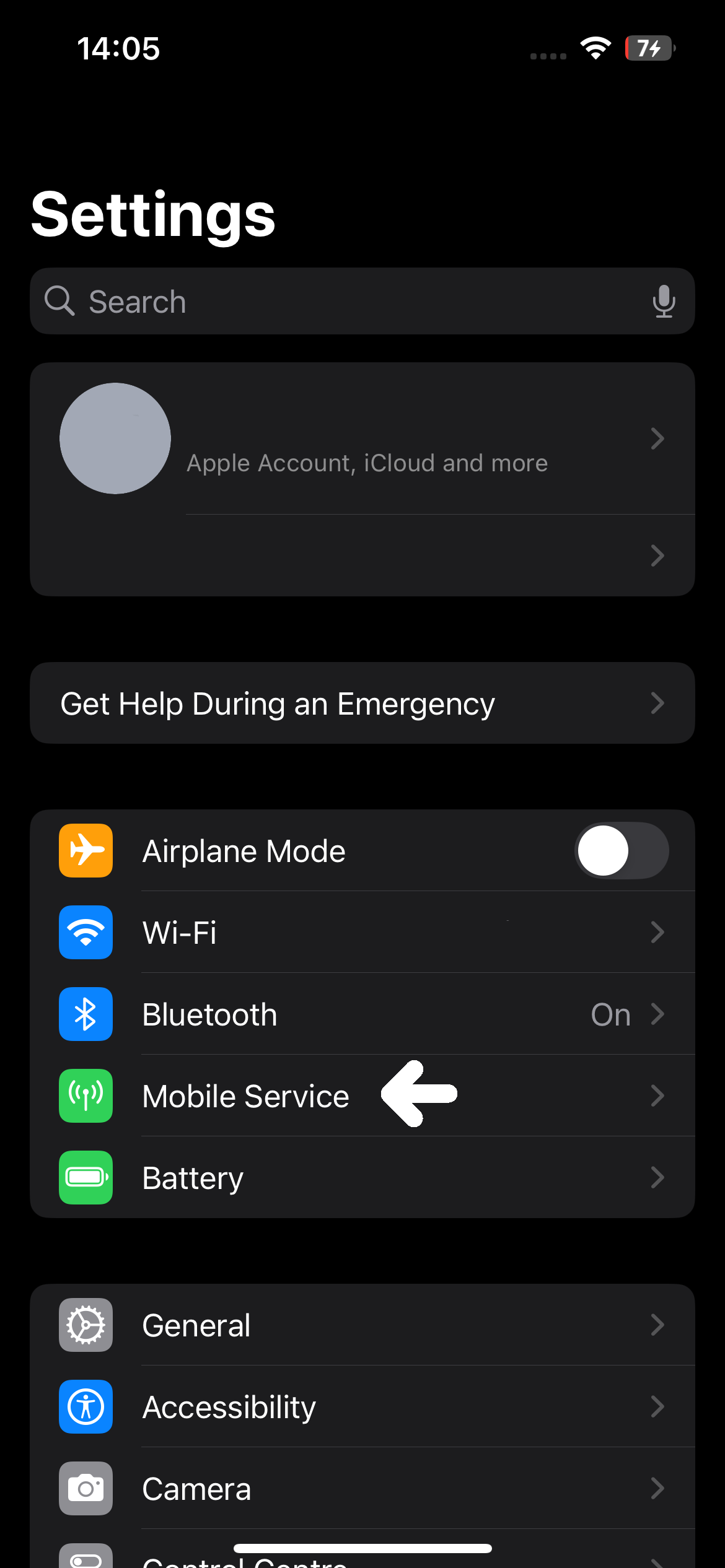
- Tap on “Add eSIM” or “Configure Mobile Data”.
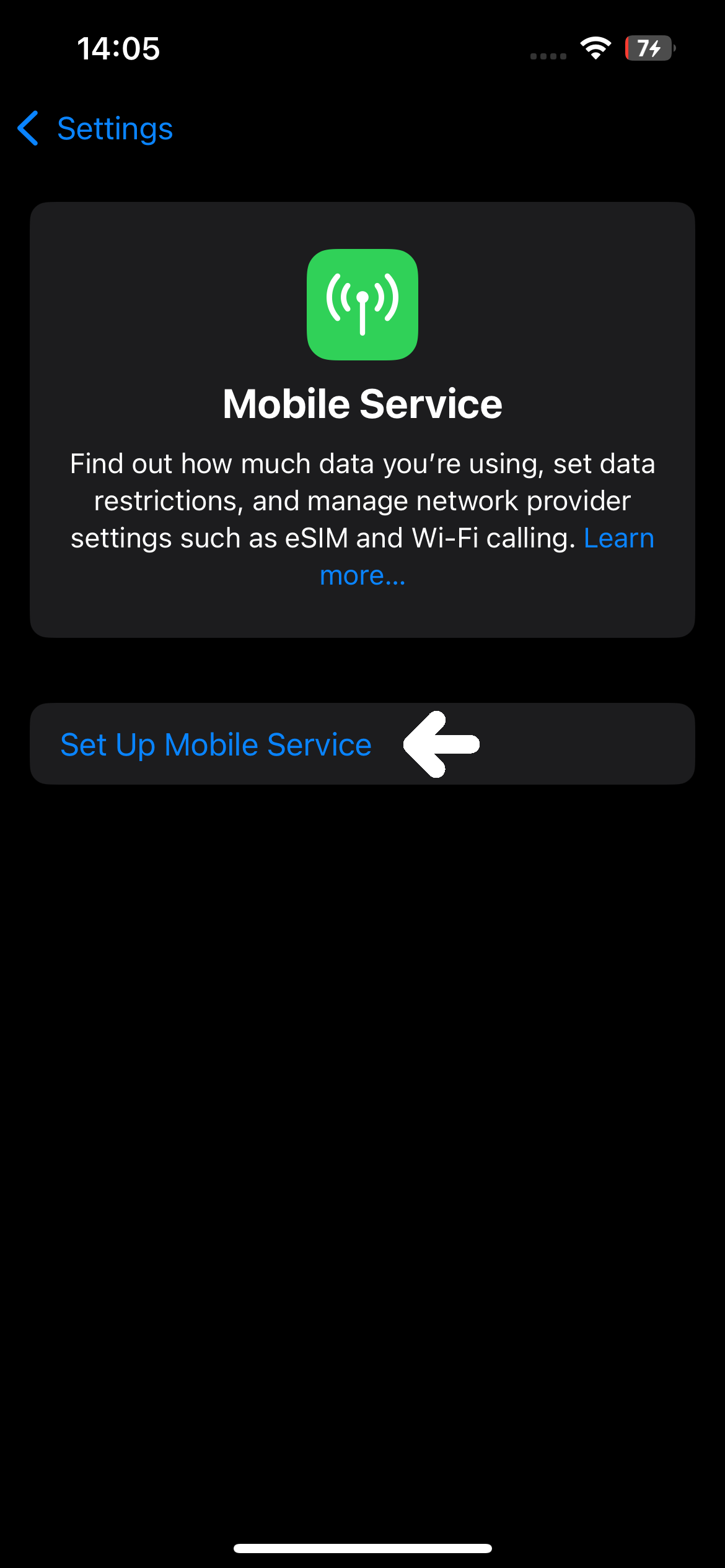
- Select “Use QR Code”.
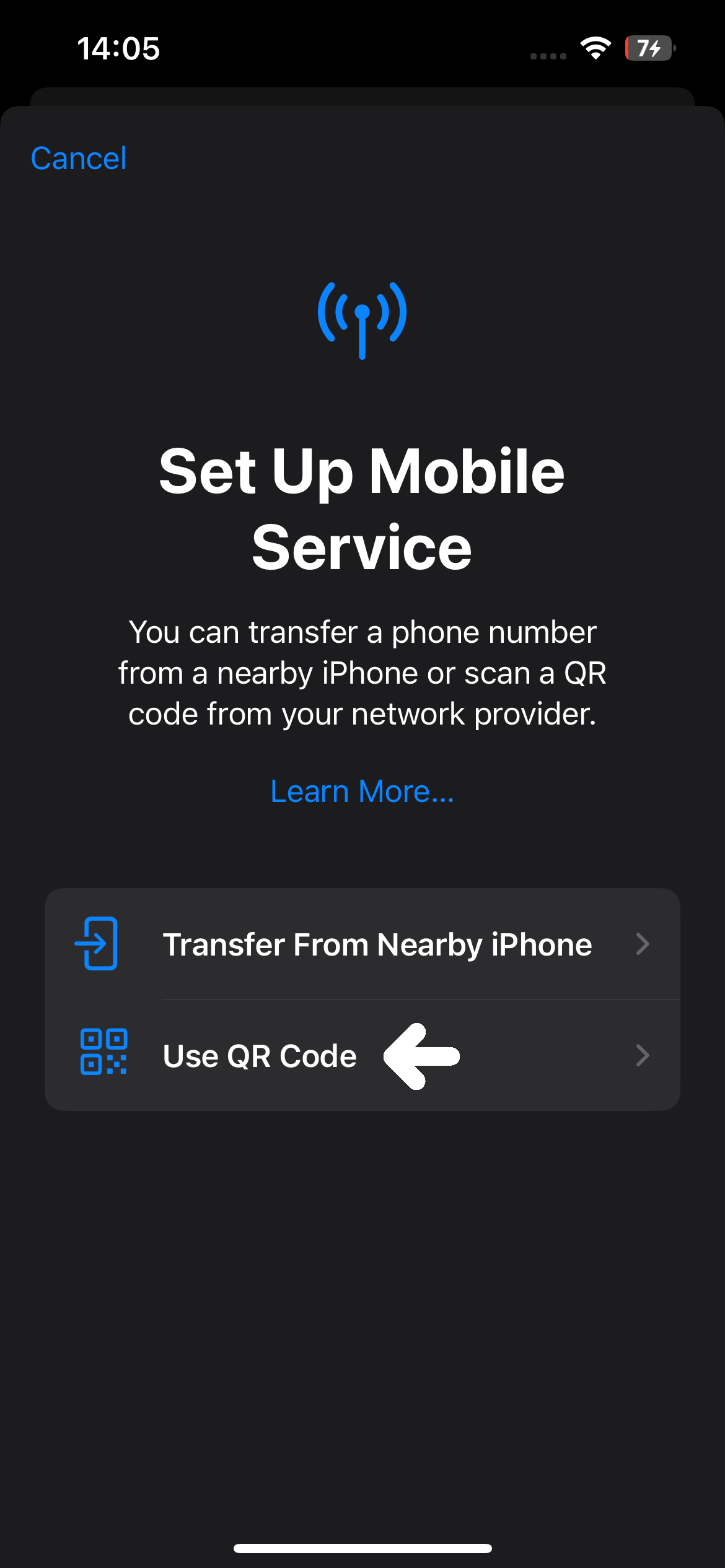
- Hold the iPhone camera over the provided QR code until it is recognised. The new tariff now appears on the screen.
- Tap on “Next” or “Continue”. Wait until the eSIM has been downloaded and activated. This process may take a few minutes.
- If offered, complete the process with “Done”.
Alternative: QR code directly from email or browser
- Open the email or web page with the QR code on your iPhone.
- Hold your finger on the QR code for a few seconds.
- Select “Add eSIM” from the menu.
- Follow the instructions on the display until the eSIM is fully activated.
Android
Preparation
Open the device settings.Depending on the manufacturer, you will find the relevant section under “Network and Internet”, “Connections” or “SIMs”.Make sure that Wi-Fi is active.
Installation via QR code – Google Pixel / Standard Android
- Open “Settings” → “Network and Internet”.
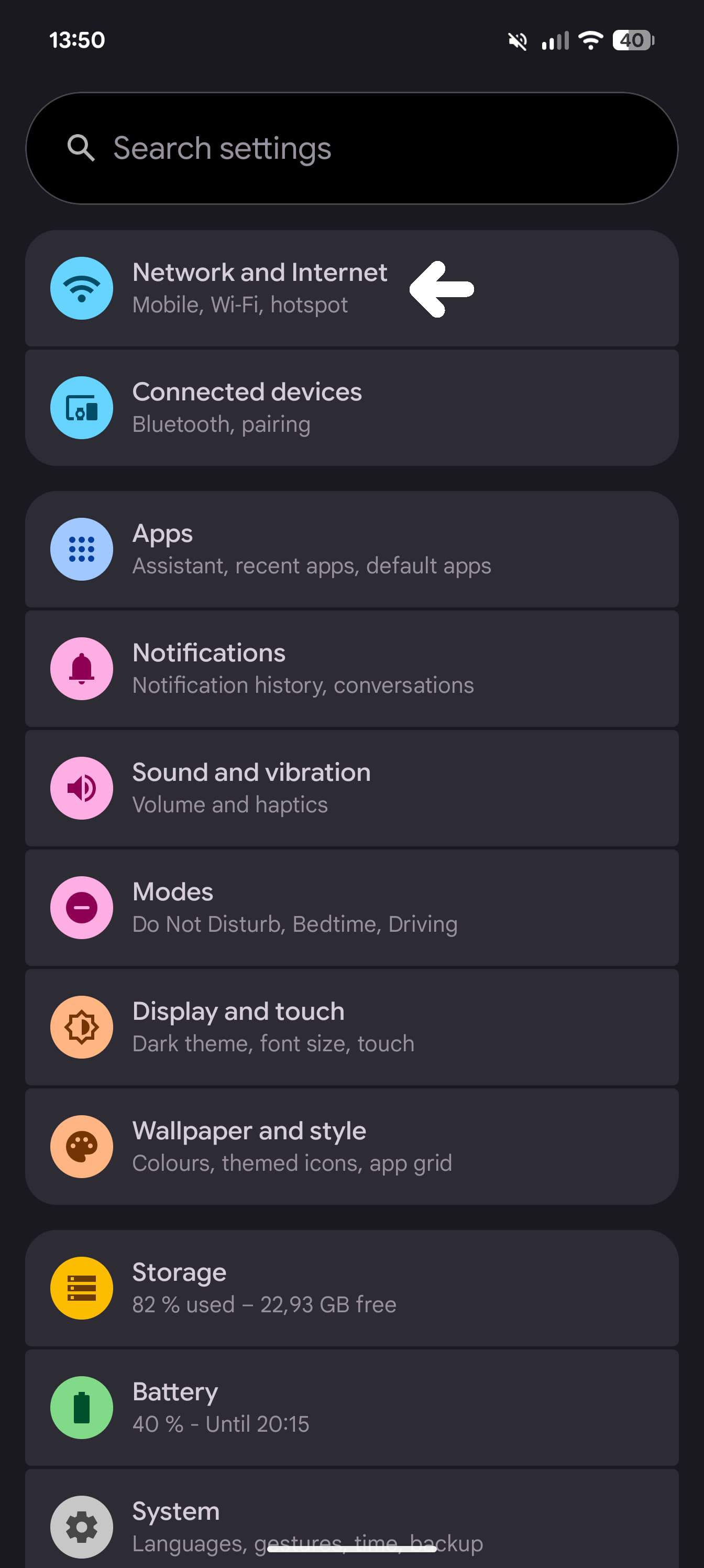
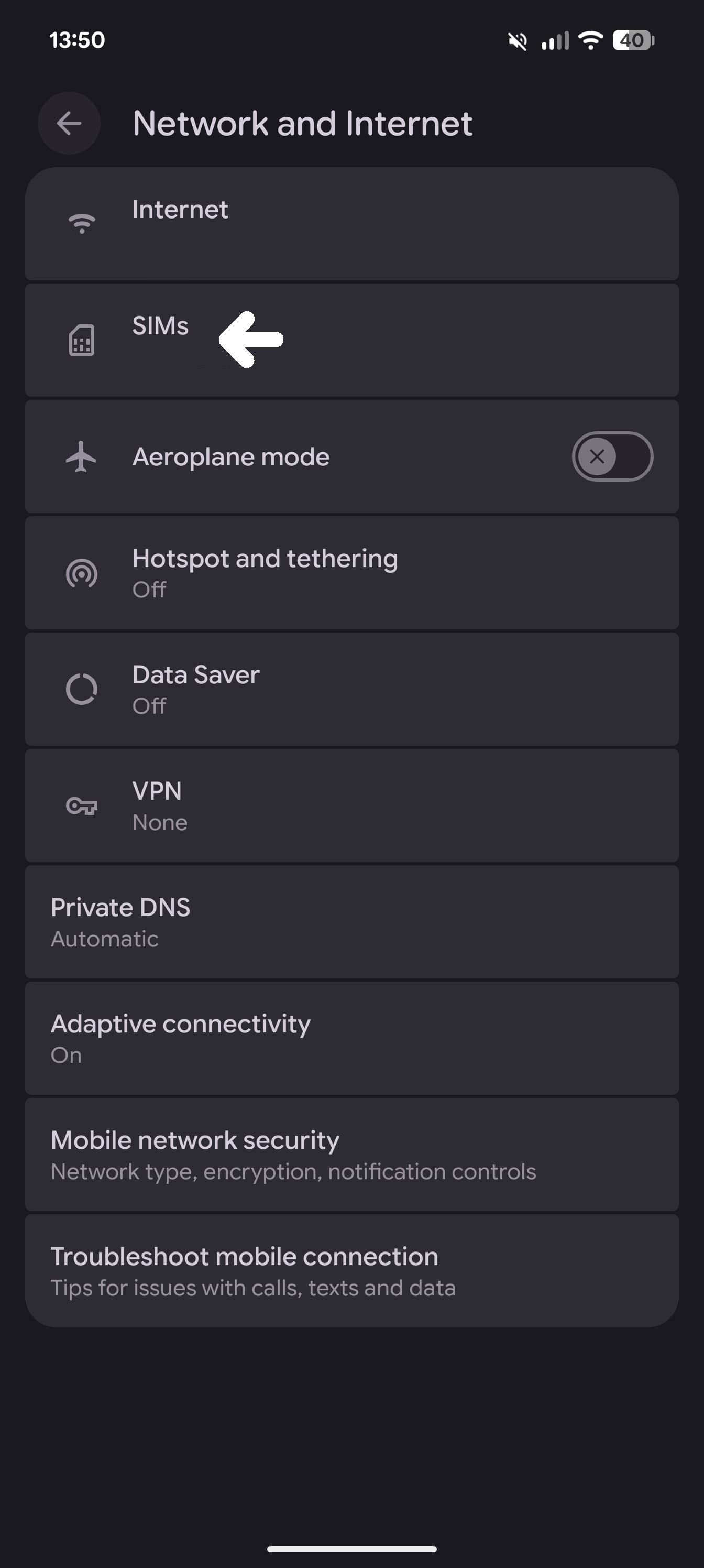
- “Select ‘SIMs’ → ‘Add SIM’ → ‘Set up eSIM’.
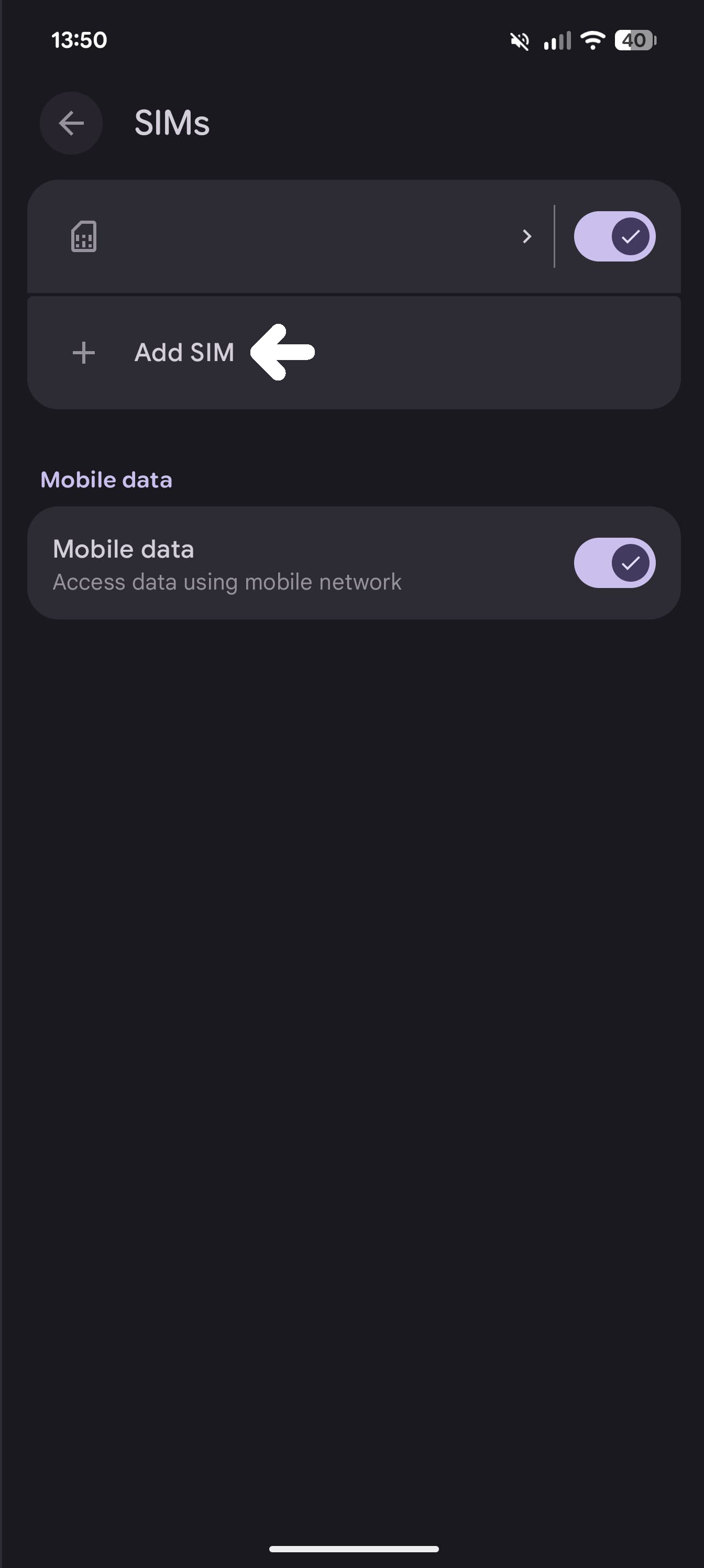
- Select “Scan QR Code”. Scan the received QR code.
- Follow the instructions until the eSIM has been fully loaded and activated.
Installation via QR Code – Samsung Galaxy
- Open settings → “Connections”.
- Select “SIM Manager”. “Add eSIM.”
- Select “Scan QR code from service provider.”
- Scan the QR code and then confirm.
- The eSIM is being downloaded and is displayed as active.
Option 3: Activate eSIM Manually (SM-DP+ & Activation Code)
iOS
Manual Entry
- Open the iPhone settings and select “Mobile Data”.
- Tap on “Add eSIM” or “Configure mobile network.”
- Select “Enter details manually”.
- Enter the SM-DP+-address and the activation code exactly as you received them.
- Tap on “Next”.
- Wait until the eSIM profile has been downloaded and activated.C
- omplete with “Done” if prompted.
Android
Manual Input – Google Pixel / Standard Android
- Open “Settings” → “Network and Internet”.
- “Select ‘SIMs’ → ‘Add SIM’ → ‘Set up eSIM’.
- Select “Enter code manually”.
- Enter the provided data (SM-DP+ address and activation code).
- Confirm and wait for activation.
Manual Input – Samsung Galaxy
- Open settings → “Connections” → “SIM Manager”.
- Select “Add eSIM”.
- Select “Enter activation code”.
- Enter activation code.
- Confirm and wait until the eSIM is displayed as activated.
After installation: Set up roaming correctly (iOS & Android)
Regardless of the installation method, the following applies:
New eSIM (Travel/Data Plan): Enable data roaming on
Old SIM or old eSIM (home tariff): disable data roaming off